Messaging
Messaging is the content planning surface for Bakin. It starts with an agent-assisted brainstorm, turns accepted ideas into Plans, helps shape each Plan into channel-specific content pieces, starts prep work when the prep window opens, routes drafts through review, and publishes approved content at the right time.
Use Quick Post when you need a one-off Deliverable without a larger Plan.
Calendar
Section titled “Calendar”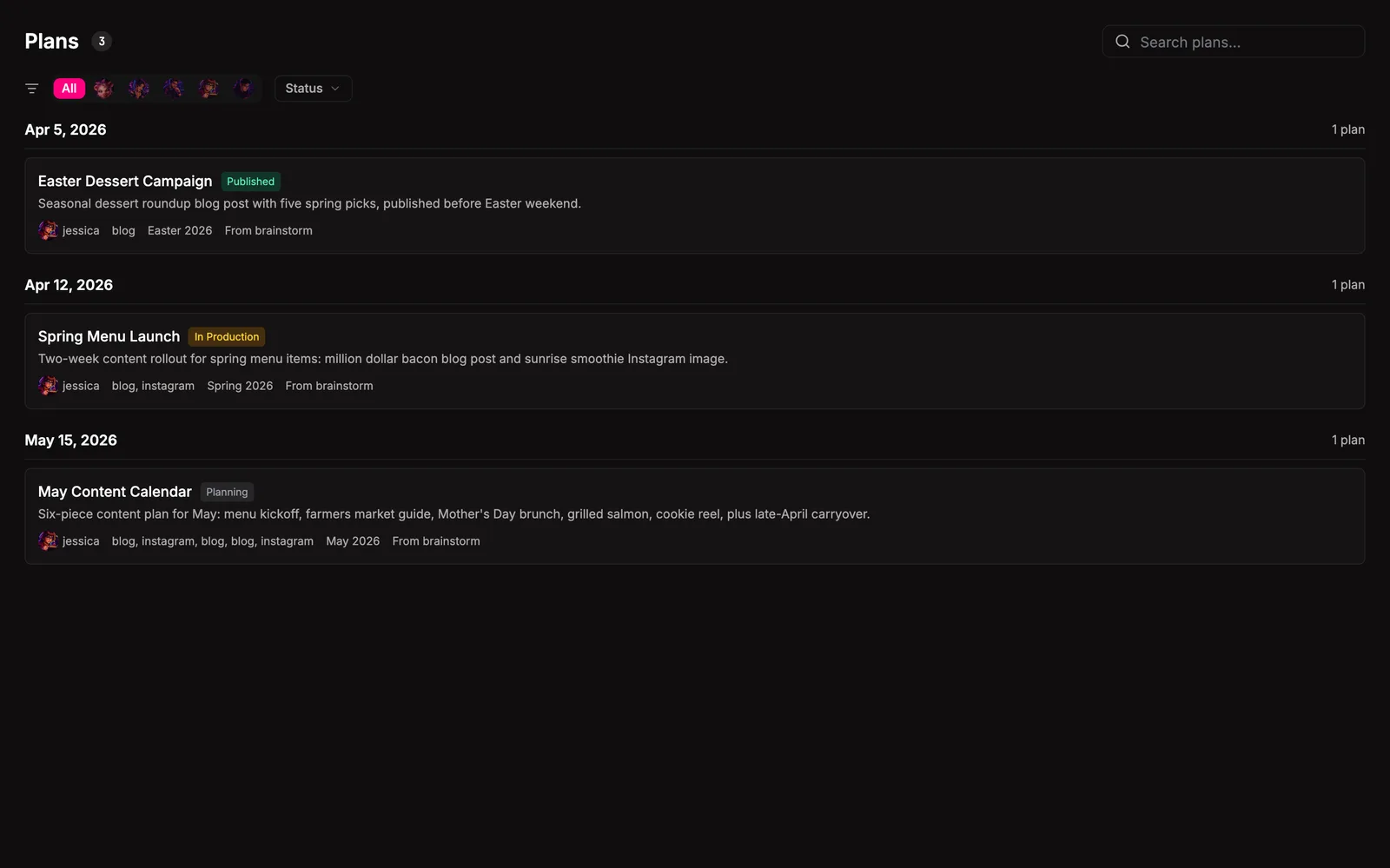
The calendar shows Deliverables, not brainstorm drafts. Filters cover agent, status, content type, channel, and local text search across title, brief, draft caption, and agent notes. Orphaned agent ids, content types, and channels still show up in filters so old content remains visible after settings or team changes.
Click a Deliverable to open the drawer. The drawer shows status, Plan context, draft text, asset previews, failure reasons, and review actions. Required image or video assets must be present before approval.
Deliverable lifecycle
Section titled “Deliverable lifecycle”| Status | What it means |
|---|---|
proposed | Suggested for a Plan, waiting for human review. |
planned | Approved for prep, waiting for the prep window. |
in_prep | A Bakin task or workflow is preparing the draft. |
in_review | Draft is ready for human approval or changes. |
changes_requested | The reviewer sent feedback back to prep. |
approved | Ready to publish at publishAt. |
published | Delivered through a runtime channel. |
overdue | Publish time passed before approval. |
cancelled | Intentionally stopped. |
failed | Publish or workflow handling failed, with failureReason. |
Bare-task Deliverables publish from the sweep after approval. Workflow-backed Deliverables publish when their workflow completes after Messaging has approved the gate.
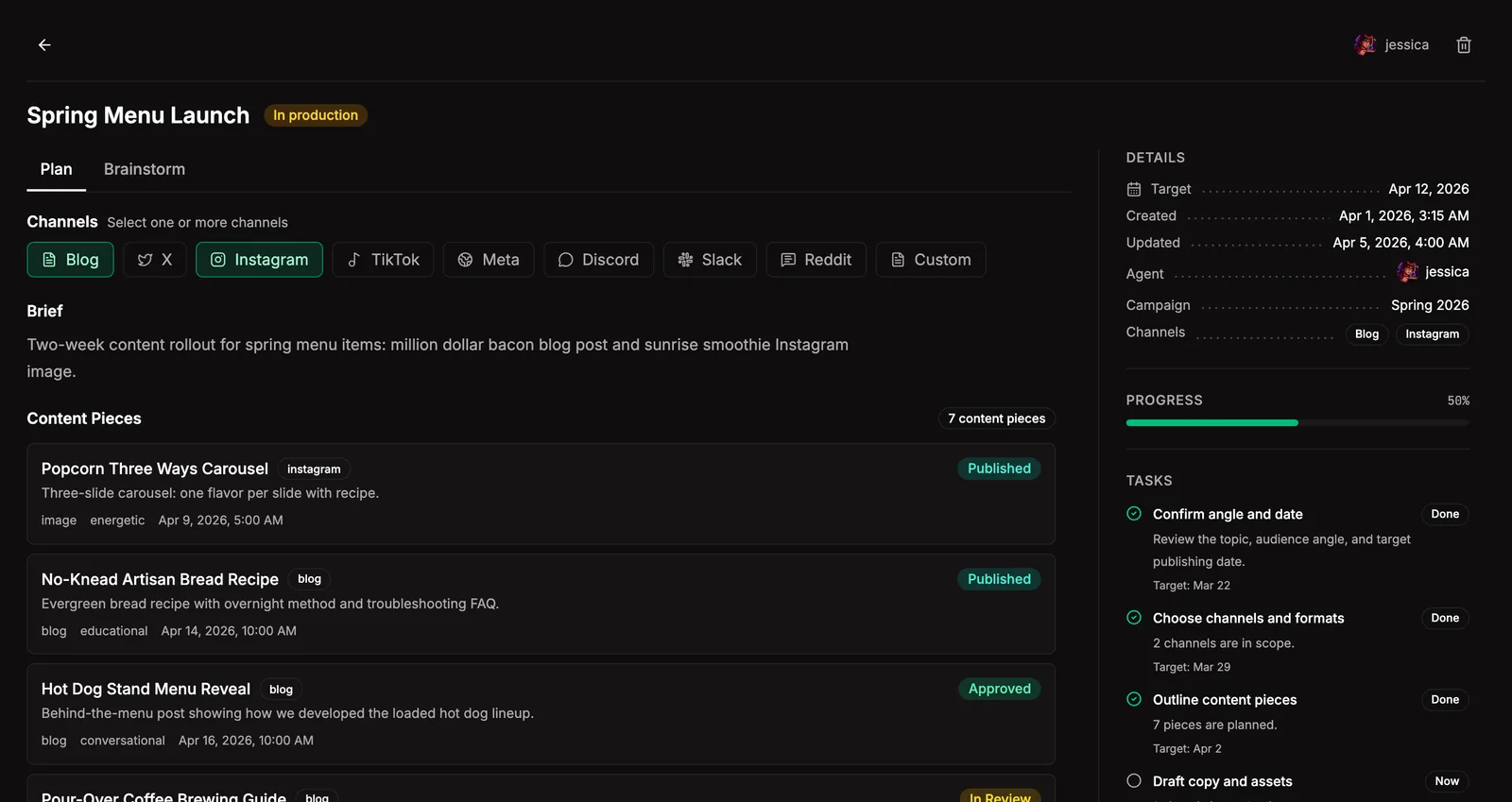
A Plan is one topic or date focus, such as “Taco Tuesday”. It carries a lead
agent, brief, optional campaign label, soft targetDate, and suggested
channels from the brainstorm proposal.
Open a Plan to manage the work leading up to release. The workspace keeps the
Plan in the center, next-step tasks on the right, and the brainstorm context at
the bottom. When you are ready to plan channel-specific pieces, a Bakin task
can ask the lead agent to call bakin_exec_messaging_propose_deliverable once
for each recommended channel. Those suggestions appear in the Plan workspace,
where you accept, edit, or decline them before they enter prep.
Plan status is derived from child Deliverables: planning, planning content pieces, in production, in review, scheduled, needs attention, partially published, published, cancelled, or needs repair.
Brainstorm
Section titled “Brainstorm”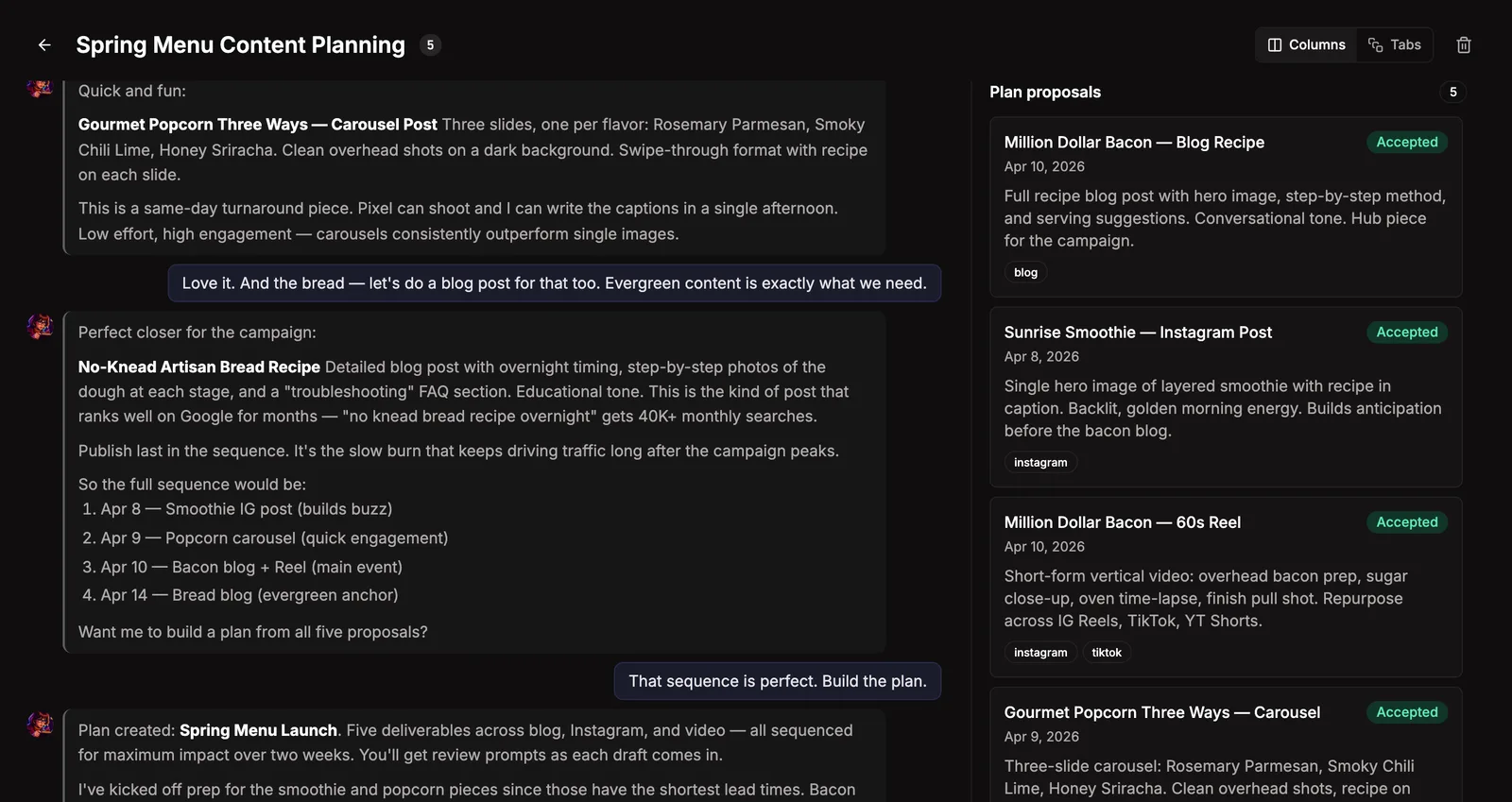
Brainstorm sessions are open-ended. Pick an agent, name the session, and talk through goals, audience, voice, dates, and ideas. When the agent proposes a concrete topic, it emits a fenced JSON Plan proposal with:
titletargetDatebrief- optional
suggestedChannels
Accept the proposals you want and click Complete session and prepare plans.
Each accepted proposal becomes a Plan. No production work starts at this step.
Sessions stay active, so you can return later and prepare more Plans from the
same conversation.
Session continuity and activity
Section titled “Session continuity and activity”Messaging stores visible user, assistant, and activity rows under the session. New messages reuse a stable adapter-neutral runtime thread id for that session and agent, so the active runtime adapter can continue the same conversation.
Tool calls and runtime status stream into the chat as activity rows. Search indexes user/assistant planning text and proposal summaries, not raw tool output.
Quick Post
Section titled “Quick Post”Quick Post creates a Deliverable with planId: null. Use it for a single
social post, announcement, or media item that does not need brainstorm or Plan
content-piece planning.
Media-required content types can still be created without attaching an asset up front. The prep agent can generate or attach the asset later. Approval and publish-time validation enforce required media before anything is delivered.
Content Types
Section titled “Content Types”Five content types seed by default:
| Type | Prep lead | Workflow | Asset requirement | Approval |
|---|---|---|---|---|
blog | 72 hours | messaging-blog-prep | optional image | required |
video | 168 hours | messaging-video-prep | video | required |
x-post | 4 hours | none | optional image | required |
image | 24 hours | messaging-image-post-prep | image | required |
announcement | 1 hour | none | none | skipped |
Settings can add or edit content types. prepLeadHours derives each
Deliverable’s prepStartAt, workflowId opts into workflow-backed prep,
assetRequirement controls validation, requiresApproval controls the
bare-task review stop, and defaultAgent can route prep to a specialist.
Changing Messaging settings broadcasts plugin:settings-changed, so calendar
filters and badges update without a page reload.
Channels
Section titled “Channels”Channels are runtime destinations for published content. A Deliverable picks
one channel. The publish helper resolves draft asset filenames and calls
ctx.runtime.channels.deliverContent with caption and file refs.
Activation, Task Timing, And Workflows
Section titled “Activation, Task Timing, And Workflows”Messaging does not register cron jobs and does not use Schedule for Plan execution. A Plan starts only when a user explicitly activates it.
Activation validates that the Plan has concrete channels, creates one
Deliverable per channel, and creates one kickoff task per Deliverable through
ctx.tasks.create. Each kickoff task carries availableAt from the
Deliverable prepStartAt, dueAt from the target publish time, and source
metadata that links the task back to the Messaging Deliverable. Dispatch is the
single wakeup path: it ignores future tasks until availableAt is reached.
Workflow-backed prep is created through ctx.tasks.create({ workflowId }).
Messaging listens for workflow.gate_reached and workflow.complete, and
resolves gates through workflows.approveGate and workflows.rejectGate
hooks. Messaging owns the final publish call in both bare-task and workflow
paths.
Where it lives
Section titled “Where it lives”~/.bakin/plugin-data/ messaging/ sessions/<id>.json # brainstorm messages, activity rows, proposals plans/<id>.json # content Plans deliverables/<id>.json # channel-specific work and publish state legacy/ # archived pre-refactor messaging.json files plugin-settings/ messaging.json # content types, channels, sweep cron, defaultsSessions index into search as messaging_brainstorm. Plans and Deliverables
filter locally in the plugin UI.
Settings
Section titled “Settings”| Setting | Type | Default | What it does |
|---|---|---|---|
| Default view | select | month | Default messaging view on page load |
| Show schedule jobs | boolean | false | Display recurring schedule jobs on the content calendar |
| Channels | string | DEFAULT_CHANNEL | Comma-separated runtime channel IDs available for distribution (e.g., general,announcements,email) |
| Agent plan activation | select | blocked | Controls whether MCP agents can activate Plans and create kickoff tasks. |
| Agent deliverable approval | select | blocked | Controls whether MCP agents can approve or reject Deliverables. |
| Content types | list | true | Categories used across the content calendar and brainstorm proposals. |
From the CLI
Section titled “From the CLI”| Command | Purpose |
|---|---|
bakin messaging sessions | List planning sessions |
bakin messaging session <sessionId> | Get a planning session |
bakin messaging session-create <agentId> | Create a planning session |
bakin messaging session-update <sessionId> | Update a planning session |
bakin messaging session-delete <sessionId> | Delete a planning session |
bakin messaging message <sessionId> <message> | Message a planning session |
bakin messaging materialize <sessionId> | Prepare Plans from accepted proposals |
bakin messaging proposal <sessionId> <proposalId> | Update a planning-session proposal |
Full surface in the CLI reference.
HTTP API surface for this plugin: see the API reference.
For agents
Section titled “For agents”Agents support brainstorm sessions, content-piece planning, Deliverable prep, review, and publish recovery through MCP exec tools.
bakin_exec_messaging_deliverable_approve: Approve a Deliverable after review.bakin_exec_messaging_deliverable_create: Create a Quick Post Deliverable. Plan Deliverables are created only by Plan activation.bakin_exec_messaging_deliverable_get: Get a content Deliverablebakin_exec_messaging_deliverable_list: List content Deliverables with optional filtersbakin_exec_messaging_deliverable_ready_for_review: Signal that a bare-task Deliverable draft is ready for user review or auto-approval.bakin_exec_messaging_deliverable_reject: Request changes for a Deliverable after review.bakin_exec_messaging_deliverable_update: Update a content Deliverable. Draft fields are deep-merged.bakin_exec_messaging_plan_activate: Activate a content Plan and create scheduled kickoff tasks for its configured channels.bakin_exec_messaging_plan_channel_delete: Delete one configured Plan channel, its Deliverables, and linked board tasks.bakin_exec_messaging_plan_create: Create a content Planbakin_exec_messaging_plan_delete: Delete a content Plan, its content pieces, and linked board tasks.bakin_exec_messaging_plan_get: Get a content Plan and its Deliverablesbakin_exec_messaging_plan_list: List content Plans with optional filtersbakin_exec_messaging_proposal_update: Update a proposal status or fields (approve, reject, edit)bakin_exec_messaging_session_create: Create a new planning session for an agentbakin_exec_messaging_session_delete: Delete a planning session without deleting Plans prepared from it.bakin_exec_messaging_session_get: Get a planning session with full message history and proposalsbakin_exec_messaging_session_list: List planning sessions with optional filtersbakin_exec_messaging_session_materialize: Prepare Plans from accepted brainstorm proposalsbakin_exec_messaging_session_message: Send a message in a planning session (non-streaming, returns full response)bakin_exec_messaging_session_update: Update a planning session title or status
Full schemas in the Exec tools reference.