Essentials
Every Bakin’ instance gets two slices. The first is the shell: navigation, live activity, dispatch, and debugging, always on and always watching. The second is what makes your Bakin’ yours: plugins that extend your capabilities and agents that extend your team. Either way, they install as kits: portable bundles with workflows, guardrails, settings, and more.
Bundles
Section titled “Bundles”Bakin ships with key capabilities auto-bundled. The plugins documented in the rest of this section come baked in. Add more whenever you need to, through three paths:
- Officially supported kits maintained by the Bakin team
- Community contributed kits from other Bakin users
- Bespoke kits you build yourself
Whichever path, kits install the same way. Inside, they can carry workflows, settings, skills, lessons bombs, assets, and any other content the extension needs to plug in cleanly.
Plugins
Section titled “Plugins”Plugins extend Bakin. A plugin can ship pages, API endpoints, MCP tools agents can call, hooks other plugins can wire into, settings, and data shapes. Most ship a subset; plenty are pure backend with no UI at all. Every page in this section is a plugin. User plugins install into the running server when possible and otherwise activate on the next start.
bakin plugins list # what's installedbakin plugins install <path|github:user/repo> # add onebakin plugins export plugins.json # back up user pluginsbakin plugins import plugins.json --yes # restore user pluginsbakin plugins upgrade <id> # pull the latestbakin plugins remove <id> # uninstallbakin plugins restore <id> --list # list uninstall snapshotsbakin plugins restore <id> # restore latest snapshotCore plugins ship with Bakin and can’t be removed. Everything else is fair game. Build your own or install one from the community.
Agents
Section titled “Agents”Where plugins ship code, agent kits ship the content that makes an agent an agent: identity, skills, workflows, lessons bombs. Once installed, Bakin projects the kit into your runtime’s home directory and registers the agent in its lockfile. From there it picks up task assignments, calls MCP tools, and reports results like any other team member.
Most tools call a markdown file an “agent.” Bakin’s are hired, not prompted.
bakin agents list # what's installedbakin agents install <path|github:user/repo[@ref][#subpath]> # add onebakin agents update <agent-id> # pull the latestbakin agents remove <agent-id> # uninstallAgent kits are projected, not copied. The runtime home directory stays the source of truth for agent state. Build your own kit or grab one from the community to make Bakin yours.
Activity Feed
Section titled “Activity Feed”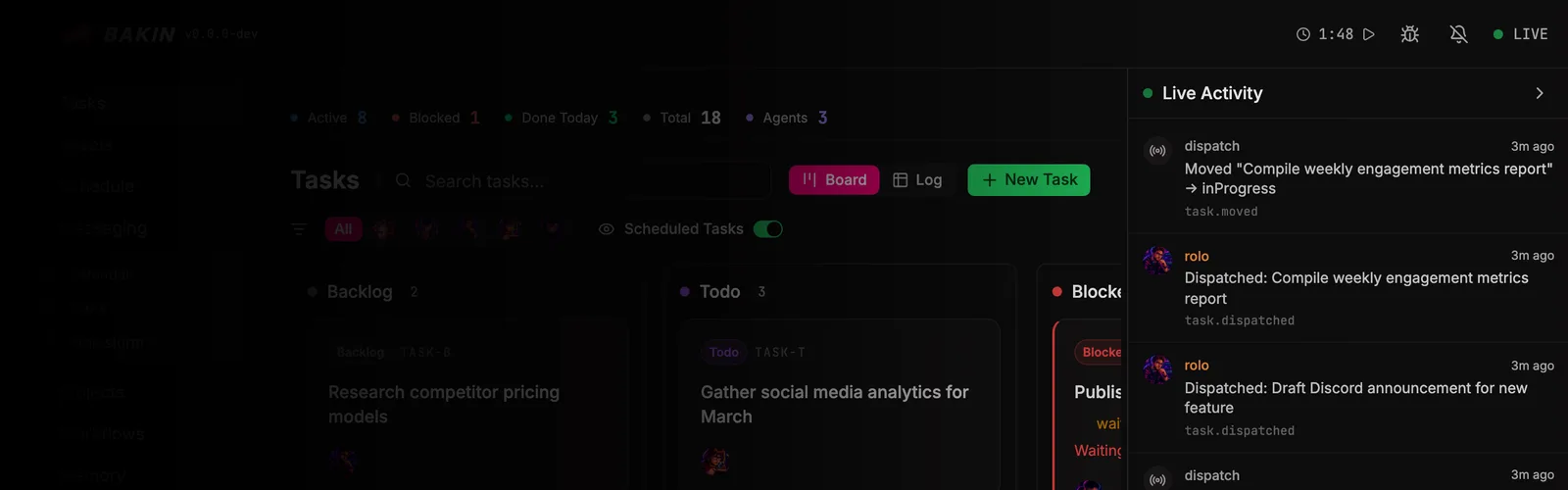
This is the heart and soul of observability. The activity feed streams every agent action (turn) in real time: task moves, dispatch events, retries, recoveries, completions, the exact moment work gets stuck. No black box. No secrets. You see what your agent army is up to, and what it isn’t, while it’s happening.
Toggle from the header to open the panel. For us, this baby is always open.
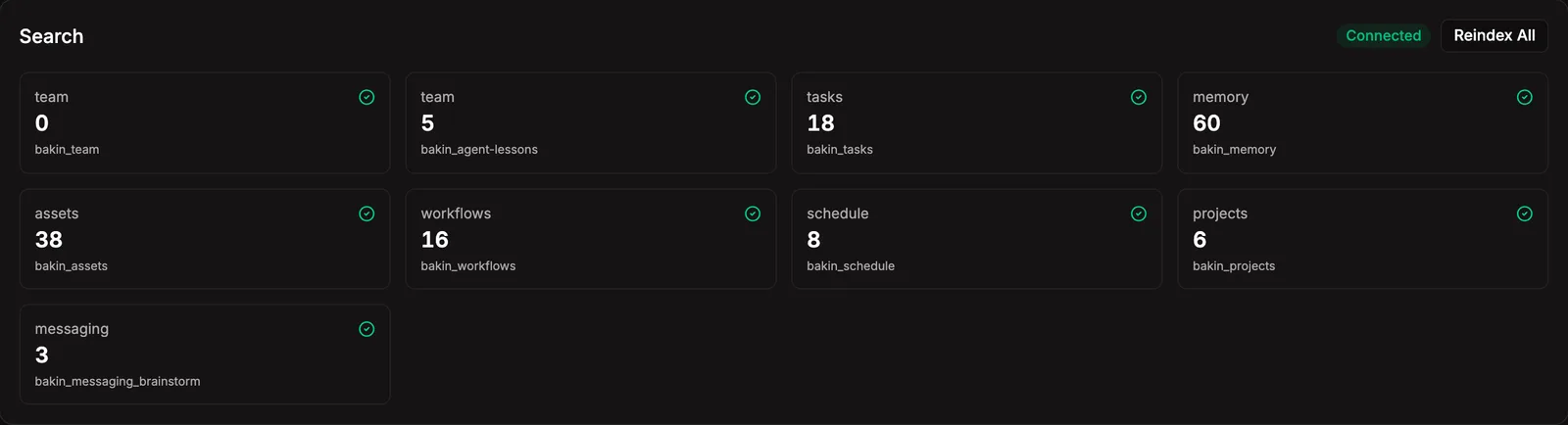
Not your ordinary search. Think of it as brain connectivity for your whole agent team. Every fact, artifact, and result findable the moment it exists. Full-text, semantic, vector, BM25, hybrid (text + meaning), multimodal for images and assets. Cross-table by default, so a single query can reach across tasks, projects, assets, memory, audit logs, every research note, every shipped asset.
This is how knowledge compounds. Each completed task, every retrieved citation, every asset feeds the corpus your agents pull from on the next job. You search by name. Your agents search by meaning. Build the knowledge base. Tackle the world.
bakin search <query> # search indexed contentbakin search:stats # show index healthbakin reindex # reindex contentbakin install search # install or repair the configured search adapterSearch runs through Bakin’s configured search adapter. If the adapter or its model dependencies are missing when you run bakin onboard, onboarding offers to install or repair them after confirmation. Without a healthy search adapter, search is disabled. Bakin itself keeps working normally.
Navigation
Section titled “Navigation”This is the main menu. All apps have one, but this one is ours. Self-explanatory: if a plugin adds UI, you’ll see it here.
Dispatch Ticker
Section titled “Dispatch Ticker”Dispatch ensures queued work gets picked up by the right agent. Tasks pile up in a queue as they’re created. Every dispatch cycle, Bakin scans the queue, picks out anything ready to run, and routes each task to its assigned agent through the runtime. The agent takes it from there.
Agents can dispatch other agents on the fly too. When one finishes a task or hands off new work, it can route directly to whoever’s next without waiting for the cycle. Bakin’s dispatch loop sits behind that as the safety net: it catches anything that fell through, retries transient failures, and cools down structural ones so nothing sits stuck indefinitely.
The ticker shows the countdown to the next cycle. Bakin dispatches on a configurable interval (default: every 5 minutes). Click it to fire immediately if you can’t wait, or fire from the CLI.
bakin dispatch # fire dispatch immediately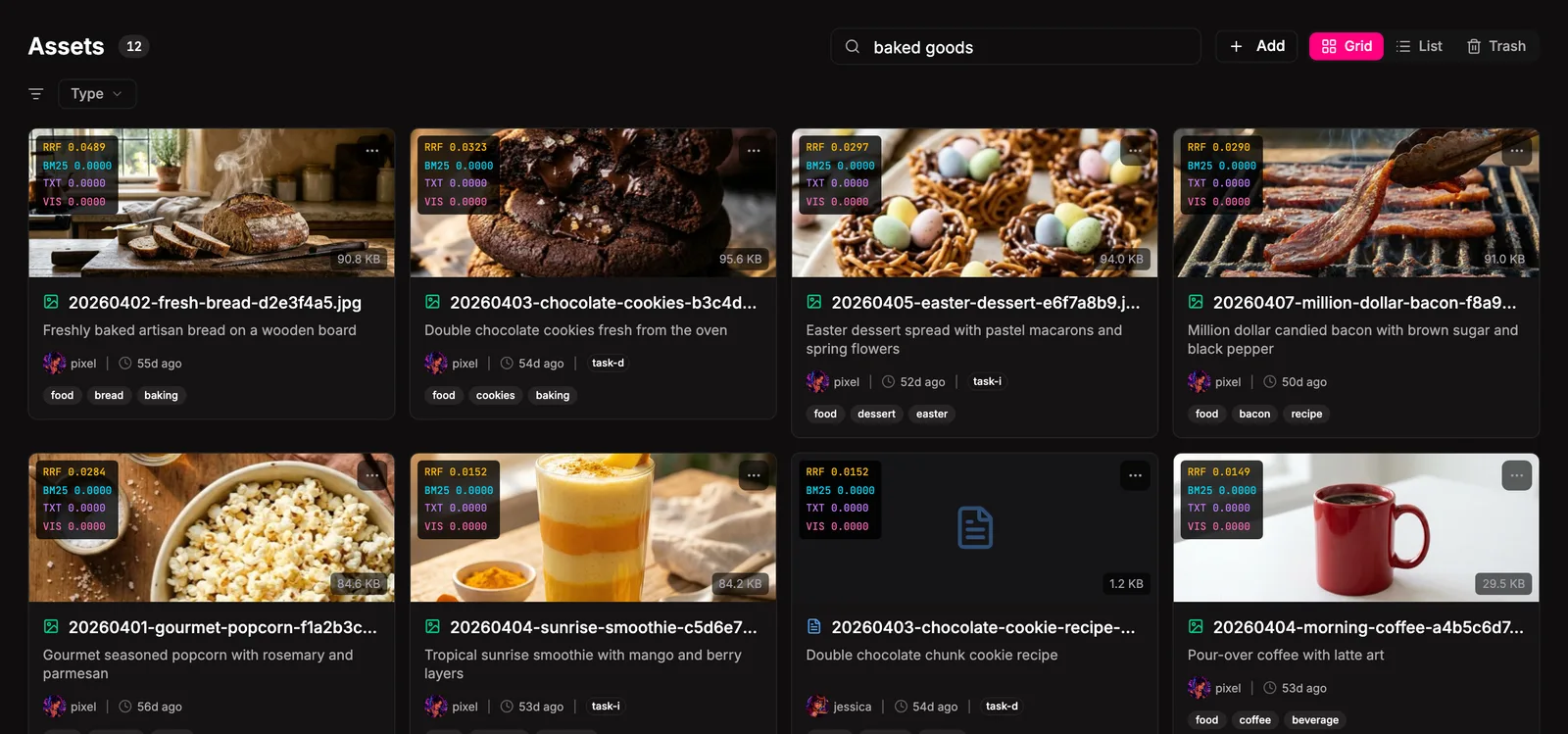
Bakin is all about visibility, and that doesn’t stop at the top level. Flip on X-Ray for deeper detail across the interface: extra context in the activity feed, why certain results are coming back in search, the raw data behind any view.
Toggle it from the bug icon, or hit ?debug=true in the URL once. Off by default; state persists in localStorage.
Alerting
Section titled “Alerting”You don’t have to keep Bakin’s tab focused. Browser alerts push through whenever something needs your attention: failed dispatch retries, blocked tasks waiting on you, anything else Bakin notices that you should know about. Click any alert to jump straight to whatever it’s about. Grant permission once and they show up like any other app notification.
Alerts also fan out to any messaging channels you’ve connected (Discord, Slack, email). You don’t need Bakin open to stay in the loop and keep things flowing.

System Status
Section titled “System Status”A status indicator showing connection. means Bakin is running and reachable. means it’s disconnected or restarting. If it stays red, check start/restart. For the full diagnostic, jump to Health.
For agents
Section titled “For agents”Agents call into the same surfaces you do. Search and health checks are exposed as MCP exec tools.
bakin_exec_search_facets: Get facet value counts for a plugin. Useful for understanding data distribution (e.g., how many tasks per status).bakin_exec_search_lookup: Look up a specific indexed document by its key and plugin.bakin_exec_search_query: Search across all Bakin content (tasks, assets, projects, workflows, schedule, team, memory, messaging) or a specific plugin. Returns ranked results with scores.bakin_exec_search_reindex: Trigger a full reindex of all content types (or a specific plugin). Use after bulk data changes.bakin_exec_search_similar: Find documents similar to a given text description. Uses semantic (vector) search for meaning-based matching.bakin_exec_search_stats: Get search system health: enabled status, per-table document counts, and index stats.bakin_exec_search_table: Search a specific Bakin plugin with facet filtering. Returns results plus facet counts for filtering.
bakin_exec_health_doctor: Run system diagnostics (agent roster, skill sync, runtime, taskboard, assets, etc.). Returns detailed check results. Use fresh=true to force a full re-check instead of returning cached results.bakin_exec_health_status: Get a quick system health summary — uptime, memory, active MCP sessions, and doctor error/warning counts. Useful for checking system state before starting work.
Full schemas and arguments in the Exec tools reference.